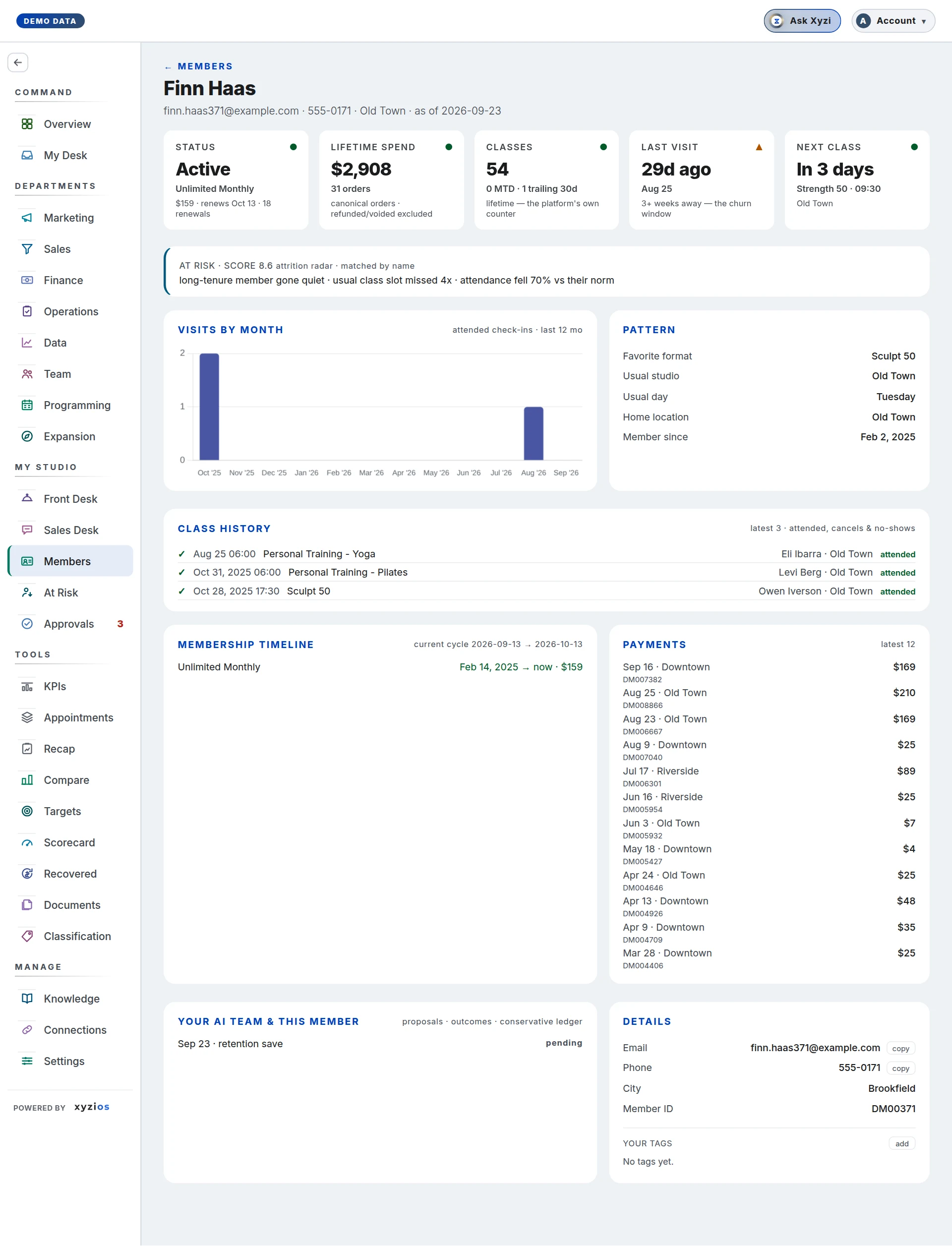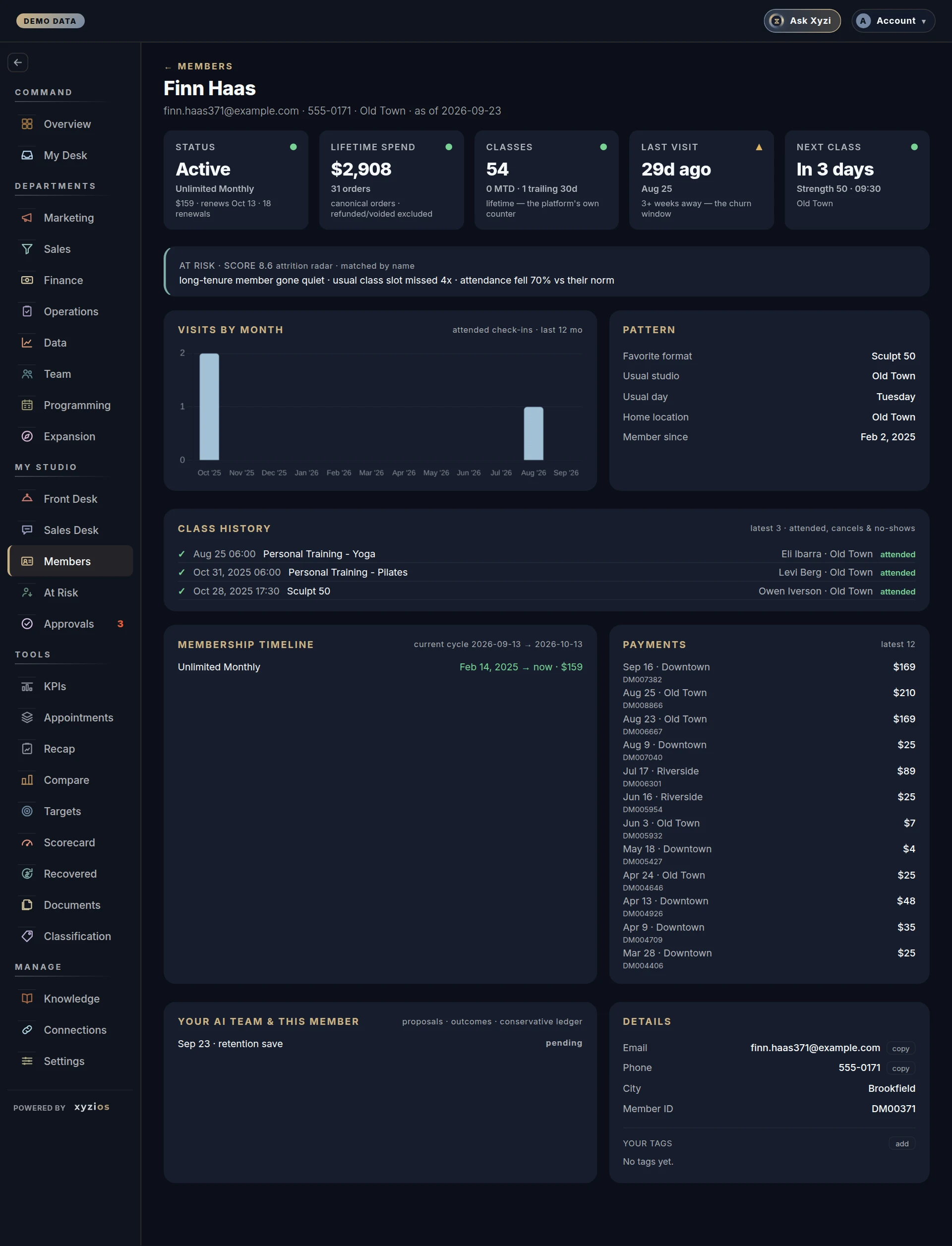

What this board answers
Who is this person, and what is going on with them? Members is a search box and, behind it, Member 360: one page per person with their membership, visits, purchases, account alerts, your team’s notes and every proposal your AI team has made about them. Every other board that shows a name — Front Desk, Sales Desk, Retention, Approvals — opens the same page.
How to read it
Type two or more characters into Search by name or email…. Up to 25 matches appear with their stage, membership, email and joined date; tap one, or walk them with the up and down keys and press Enter.
With nothing typed, Needs someone links to the boards that are call sheets, the ones you can open, and Recent brings back the last six people you have opened since the page loaded.
The profile, top to bottom:
- Before they come in comes first, across the page: alerts from your booking platform, staff only. Red is urgent (a staff alert or a pinned note); amber is paperwork, naming the unsigned document. Profile note sits under them and is visibly not an alert. The panel is absent when there is nothing to know, and reads On this profile when it holds only a profile note.
- The card on the left is the same one the slide-out opens with: their name, 1Status (Active, Frozen, Intro offer, Comp, Payment issue, Former member or Prospect), plan, phone and email, and icons to copy them and add a note or a task. The link above it takes you back to the board you came from.
- Why they’re at risk sits in the card when the Attrition radar lists them, with its reasons and Draft email, which goes to Approvals and sends nothing. The match is by name and says so.
- 2Details in the card: their membership’s rate, billing interval, renewal date and any freeze end, their Intro offer (when it began and ended, on your studio’s own days, and how long is left while it runs; for one Mariana Tek holds until their first class, the day it was bought; None on record when they never had one, by your own classification of the product), their Account balance when their account holds credit or they owe, location, member since, their First class, birthday with age and how far away it is, city if on file, Can we reach them (whether they agreed to marketing email and texts on your booking platform; where the CRM is on, the CRM says it instead), member ID and the “as of” date. First class is their first class on your booking platform. Where their class count goes back further, because your studio moved to it from another platform, an i beside it says it is not their first class ever. Where Mariana Tek holds classes older than Xyzios does, the nightly sync reads their first class from Mariana Tek, as MindBody’s own first class date is read; until it has, it reads Before the day Xyzios’s record begins. The slide-out shows it under their membership.
- Tags in the card: your own, with any from the platform (read only, rewritten by every sync).
- The tiles: 3Last visit with how often they usually come (the usual gap between the days they came in the last 12 months), amber once they are well past it (twice that gap and a week more) or past three weeks, the churn window, and a mark for each of their last twelve weeks, Next class (or private session, where one comes first), Classes (lifetime from the platform’s own counter; month to date and trailing 30 days from attended check-ins), Missed classes (their late cancels and no-shows in the last 12 months; press it to see them together in History), Lifetime spend with the order count, and Classes left with the share used when their plan has an allowance.
- Upcoming and Notes, then 4Conversation where your studio has the CRM, or Contact log where it does not. Every card starts shut, so the page stays short, with one line that says what is in it. While their intro offer runs, Upcoming says the day it ends, in that line and in its list. Notes holds your team’s notes: press it to read them or add a note. Notes are staff only and never sent to a member. Contact log shows the contacts and AI team actions there are, Conversation their messages, and each how many entries are in Recovered Revenue. An action that went out reads Sent, and one dealt with another way Handled, as on Approvals. The Note and Task icons open them for you.
- 5The last 12 months: attended check-ins by month, with each month’s late cancels and no-shows stacked on top (a key under the chart says which is which), a dashed line at their 12-month average, pale bars for months under it and, under each month, a mark for its notes, contacts and AI team actions. Point at a month for its counts. Everyone gets this chart; their days are in History.
- Their last 50 classes: the formats they took, how many they attended, cancelled or missed, and who they took most often.
- Usual week: when they come, by day and part of the day, from those classes, with their usual day, studio and favorite format.
- This cycle: how far through their billing cycle they are.
- 6Purchases: what they paid in each of the same 12 months, a bar a month with the months’ first letters under them and the 12 months’ total over the chart, so a month paid for and not come to reads across the two. The latest month’s amount is over its bar, and the highest month’s when it is higher; a month that came to a refund is drawn in the warning colour. Point at a bar for its amount and, where it was one purchase, what was bought and the day. Under them, the next charge and any unpaid charges. Someone whose purchases are all older than a year shows the day of their last one.
- 7History: classes and spend, at every studio, shut until you press it. It opens on one line across their whole time with you: each membership, pass or pack as a bar (one bar for a plan’s back-to-back renewals), their first class and the day they signed up as marks, and how long and their classes in all. Under it, one list, newest first, month by month, with the Current cycle at its head when there is one. Months older than Xyzios’s record of classes hold no classes, and a line says where the classes on record begin. It holds the classes (✓ attended, ✗ no-show, − cancelled or late cancel, ○ booked with no check-in), private sessions with who taught them, purchases with what was bought and the order number, any failed or penalty charges and whether they were collected, and each membership with any cancel reason. Signed up marks the day they joined. It holds their last 50 classes, every late cancel and no-show Xyzios has, their latest 100 private sessions, and their purchases (every one from the last 12 months, then older ones up to 100 in all). It says so at its foot when something older is left out, and where their purchases go further back, Show more under it adds the next 100 older ones each time you press it. Show picks one kind (Classes, Private sessions for someone who has had one, Late cancels, No-shows or Purchases), each with how many there are. For classes, private sessions, late cancels, no-shows and purchases, Period narrows it to the last 30 days, 90 days, 6 months or 12 months, the same periods as the boards’.
- Timeline, only where your studio has the CRM: everything done through the CRM, newest first, month by month, shut until you press it. Conversation stays beside it.
Someone in Contacts with no profile opens the same page with Open the full page: the same card, their Conversation, their stage, their messages and what lists they are on. On a phone the page reads top to bottom in this order.
By default every role but the bookkeeper opens Members, instructors included, so someone who is not on today’s roster can still be found. Anyone who can open it sees the same profile, and the front desk and instructors also reach it from a name on a Front Desk roster.
What to do here
- Search, then tap the match. From another board, tap a highlighted name.
- Read Before they come in first when the person is on their way.
- Tap copy beside the phone or email to take it to your phone or mail.
- Tap Add a tag, type a label, and it is saved; × removes one. Platform tags cannot be changed here.
- Tap Add a note, type it and tap Add note (or press Ctrl+Enter). Your name and today’s date are added for you. Edit all opens the whole note to fix or remove a line. To set a follow-up, tap Add a task, say what it is, and pick who it is for and a day: it goes on Tasks for that day. Your pick is kept on that device for next time.
- Tap the back link to return to the roster or list you came from.
The page is for reading and reaching out. Checking someone in happens on Front Desk; anything your AI team proposes for them waits on Approvals.
Common questions
The search finds nobody.
It needs at least two characters and matches names and emails only. Check the spelling the booking platform uses.
Why does Classes not match the platform?
The big number is the platform’s own lifetime counter. Month to date and trailing 30 days count attended check-ins Xyzios has seen, which starts when the studio connected.
What does Prospect mean?
A profile with no membership on record, ever. Former member means there was one once.
The roster only showed a mark; here it shows words.
On purpose. A class list is read with the member at the desk, so the roster carries a mark and the profile carries the text.
Can I fix a wrong phone number here?
No. Name, email and phone come from your booking platform; change them there and the next sync brings them over. Your tags and Notes are the only things edited on this page.
Do notes show up in my booking platform?
No. A note written here stays in Xyzios, and notes written in your booking platform stay there. The platform’s profile note is shown under Before they come in.
Someone saved the note while I was editing it.
Your edit is not saved, so it cannot erase what they wrote. Copy your words, reload the page and make the change again.
Why does a membership read $49/wk?
The billing interval is the platform’s own word for that membership, shown as it bills.