
What this board answers
What do I have to do, and what did I hand out? Tasks is one list for three kinds of work: your own to-dos, which only you see; tasks someone at the studio gives you; and Xyzi’s tasks, the things it finds that need a person, such as a new product to classify or goals that aren’t set. Anyone at the studio can give anyone a task, and every task says who gave it.
Tasks is on at every studio, for every role: it took the place of My Desk. In your first two weeks at a studio, a few getting-started tips arrive here as your own to-dos. When a studio is new, Xyzi’s tasks also carry its setup steps from its first sync: adding the team, giving each person their location, mapping class formats, turning on the Monday brief and choosing who gets it, connecting your tools and, if you asked to send email from your own address, adding its DNS records. Each one goes away by itself once it is done; tick one off if it does not apply, and it stays off.
Xyzi gives each of its tasks to the people who can do it: whoever can open the board it names and make the change there. Writing the Studio Brief, for example, is an owner’s. Done by one of them is done for everyone, and once the thing it asks for is done, Xyzi clears the task itself, usually the night after.
Some of Xyzi’s tasks are about a site: classes there that ran with people booked and nobody checked in, and each issue someone reports on Front Desk. The task goes to that site’s location managers. A site with none sends it to the Directors, and a studio with neither sends it to the owners; an issue reported for no single site starts with the Directors. If nobody takes it or does anything on it (starts it, comments, adds a photo, ticks its checklist) for two days, it moves up to the next of those, and they are told; the people below still see it under Everyone’s tasks and can take it. Owners hear nothing while a location manager or Director has it, and are told once it reaches them, but they can see it under Everyone’s tasks and take it at any time. Those notifications, and the moves, happen only between 7am and 9pm where the studio is.
Xyzi also asks whoever can do it to reconnect a connection whose sign-in was refused, on Connections, and to set revenue goals on Targets: next month’s from the 25th, and this month’s while an open location still has none. These two don’t move up or send a notification.
How to read it
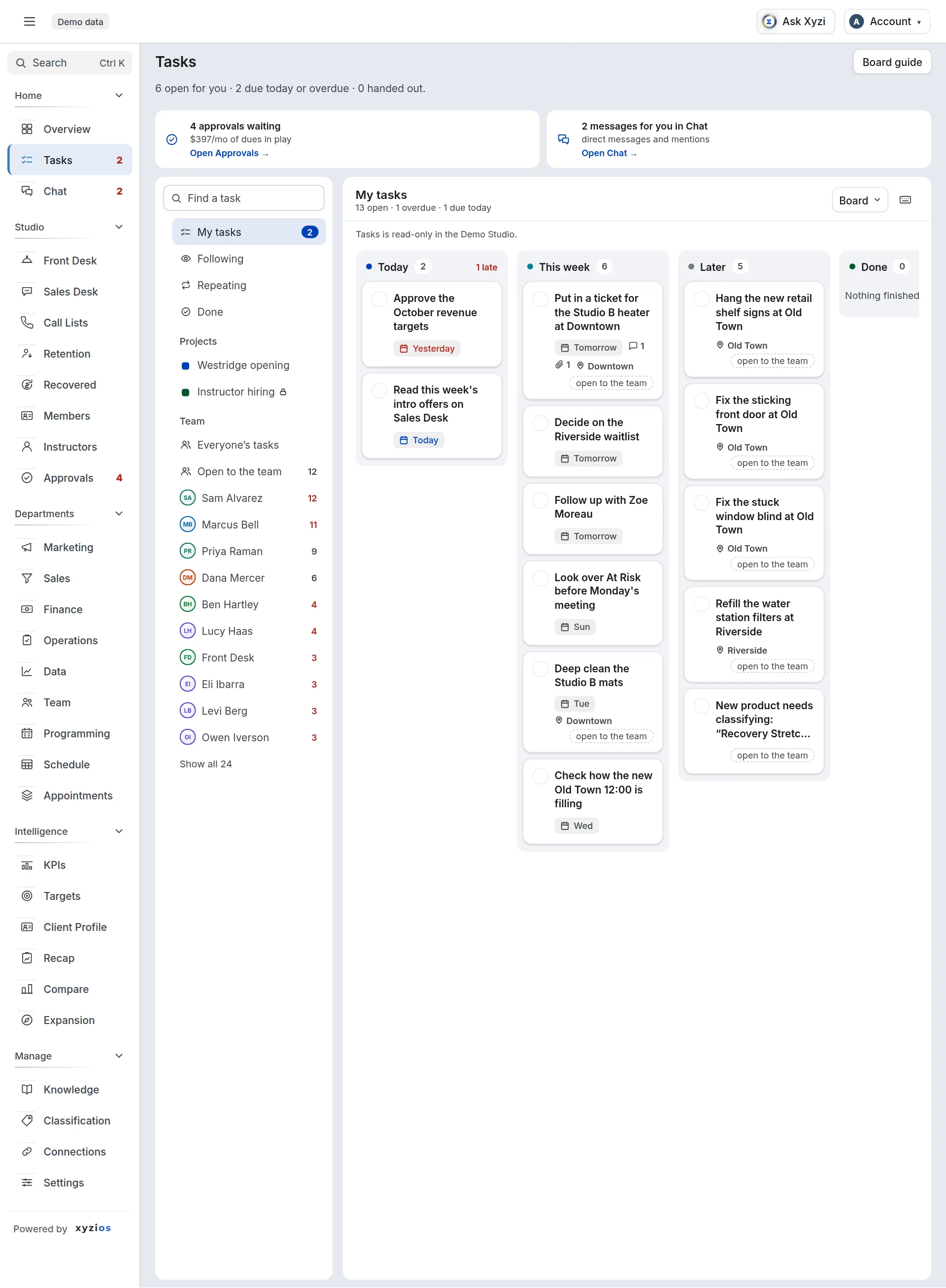
On a computer, the line under the title counts what is open for you, what is due today or overdue, and what you have handed out; a phone leaves it out, and the tabs over the board count instead. Under it, a line appears for anything 1waiting on another board: approvals waiting for a decision, with the monthly dues they carry; direct messages and mentions waiting for you in Chat; and must-reads waiting for your Got it. Each one opens its board. Approvals are still decided on Approvals.
Tasks is laid out as Chat is. Down the left: Find a task, then the views, My tasks, Following, Repeating and Done, and for owners, Directors and location managers the Team. Projects are listed between the views and the team: up to five, with the one you have open and any with something new or tasks of yours among them, then Show all for the rest. The list is in the middle, and a task you open sits beside it, the way a thread opens beside a Chat conversation; × or Escape closes it and the list is as you left it. On a small screen the left side steps aside while a task is open.
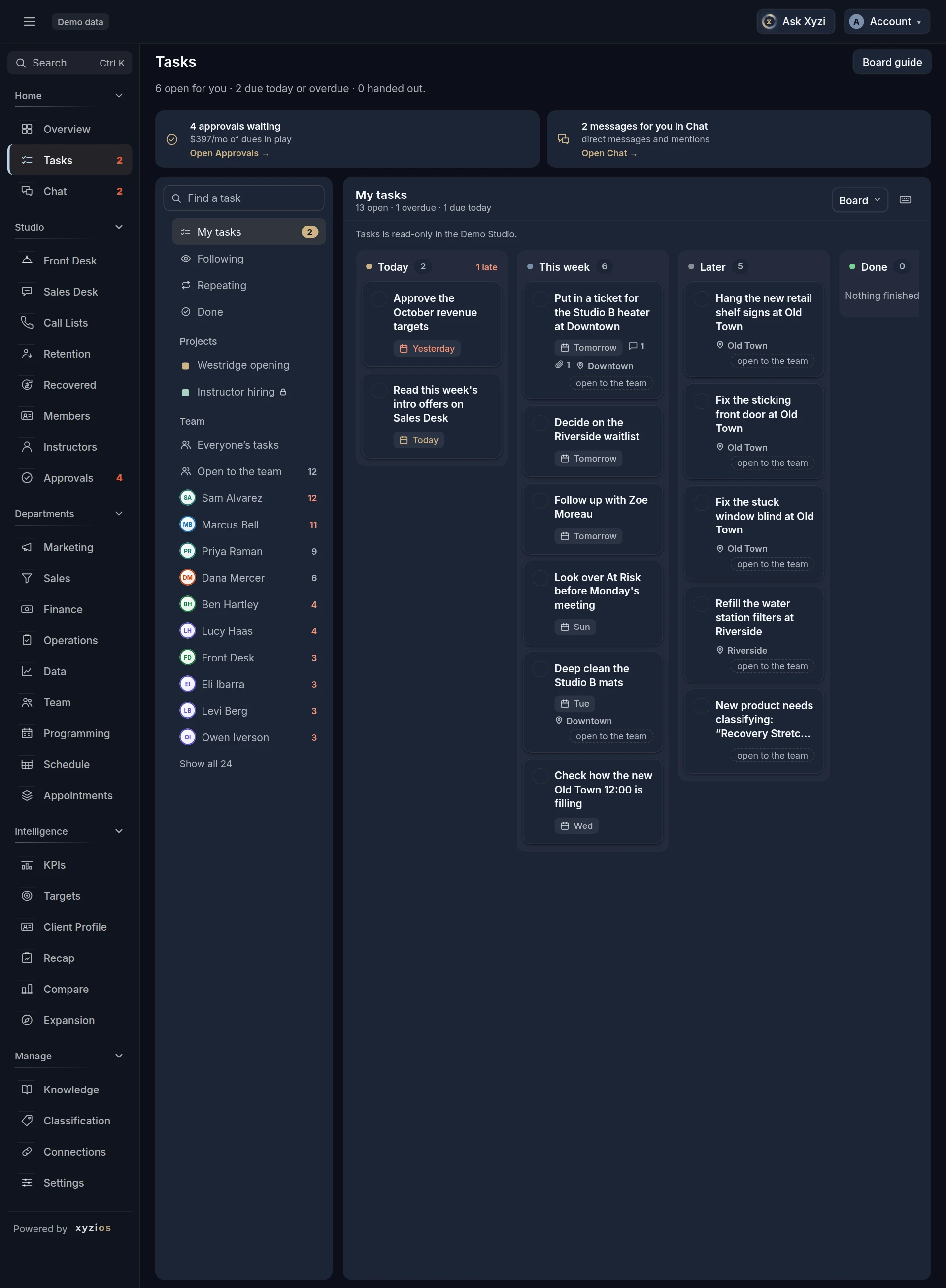
My tasks is everything that is yours to do: tasks you have, tasks open to the team, and tasks open to your role at your location. It opens as a board of four columns by when each is due: Today (late ones first, their dates in red), This week (the next six days), Later (dated ones first, then those with no date) and Done (finished in the last 7 days). A task moves to the next column by itself as its day comes round. The List shows the same tasks as rows, grouped Overdue, Today, This week, Later and No date; beside each you see where it came from (Mine, from the person who gave it, Xyzi, or Getting started for a tip), its location, what it is about, how far its checklist has got, how many comments and photos it has, and its due date, red once it is late. A task marked open to the team is one nobody has taken yet: anyone who can do it may. A task for a role, such as Front desk, is open to everyone in that role at its location until one of them takes it.
In the List, when nothing is due today or late, the top of My tasks says so and names what is next.
Following is every task you gave someone or follow, on the same board (or list), with the face of whoever has each one. A task you gave several people at once is one card there, with how many have finished it, such as “2 of 4 done”; tap it to see each person’s copy. Anything new on a task since you last opened Tasks (it was given to you, someone commented or mentioned you, added a photo, or moved one you gave along) shows on its card as a line saying who did what, on My tasks and Following alike; opening the task clears it. The number beside Following counts its tasks with something new.
2Board and List, at the top of My tasks, Everyone’s tasks, a person’s page and an open project, switch how the tasks are shown, and Tasks remembers your choice on each device. On the Board a column shows its first 8 cards, 5 on a phone, then Show more, ten at a time, and Show fewer to fold them back. A card shows its project, and Doing once it is started, above its title; a line of its notes; and along the bottom its date, how many comments, photos, checklist items and sub-tasks it has, its location, and a face: on My tasks whoever gave it to you, elsewhere whoever has it. A task open to the team shows Take it. The copies of a task given to several people are one card in each column, with the faces of the people whose copy is there; tap its title to see who. A finished project shows its List. On Everyone’s tasks you can narrow it to one person, one location or one source (Mine, Given or Xyzi).
The Team is for owners, Directors and location managers. Everyone’s tasks shows every open task you can see, a section a person; right under it, Open to the team holds the tasks nobody has taken yet. Then each person with the number of their open tasks, in red when one is overdue, with the most open tasks first. The first 10 people show; Show all lists everyone. A location manager sees the people and sites they manage. Tap a name for that person’s page: their open tasks, and the box to give them one. Private to-dos are not counted.
Done lists the tasks finished or cancelled in the last 14 days, with who finished each and when; one Xyzi cleared says Xyzi saw it was done, and a repeating task nobody finished in time says Missed. Following and Done narrow by person, location and source.
Projects are groups of tasks with a name and a colour, such as an opening, a promo or a deep clean. A lock beside one means Only the people in it can see it, with the owners and Directors; the rest are seen by everyone at the studio. Tap one for its page: who can see it and its Chat channel, the faces of its people and Open in Chat, its Owner and the day it should be finished by, how many of its tasks are done (a task that repeats counts only its newest, and any of it still open), and the tasks themselves, By status or By person. A task with sub-tasks says how many are done, and they fold under it; the done ones wait folded away at the foot. Once nothing in it is left open, the page asks whether to finish it: Finish project, or Not yet. Finished projects fold away under Finished. A task in a project names it on its row, and an open task shows where it belongs above its title, its Project, and its Sub-tasks, with a box to add one.
Repeating lists every task that repeats: how often, who it is for, where, when the one open now is due, and how its last eight went, a square each, filled for done and outlined for missed. A repeating task says how often on its row, and an open one shows it under Repeat with the same squares and how many were done.
Find a task, at the top of the left side, finds tasks that match every word you type. Open tasks, and those finished in the last two weeks, match on their title, notes, person, location or role; from two letters on, older tasks that match on their title or notes follow under Older. It only ever finds tasks you can see.
The number beside Tasks counts the tasks that need your eye: yours due today or overdue, tasks given to you since you last opened the board, and tasks you have, gave or follow with something new on them since then. Approvals are never in it.
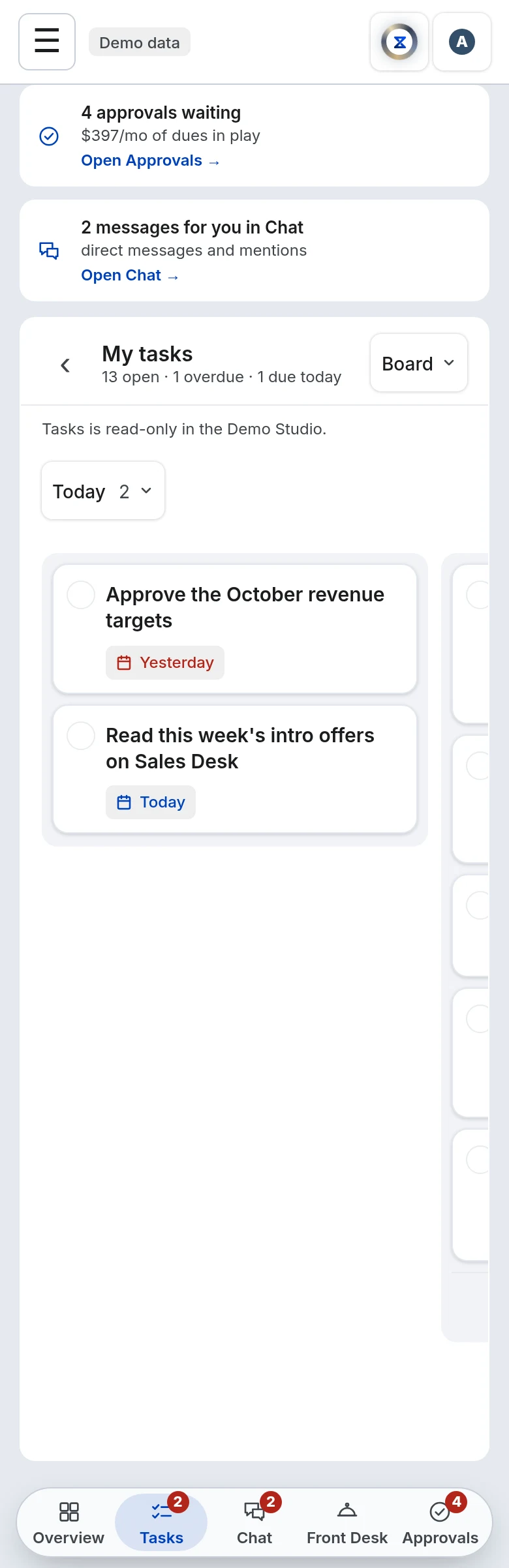
On a phone, Tasks is in the bar along the bottom with its number, unless you chose other boards with Bottom bar in the menu under your name. It opens on My tasks, on the Today column of its board: tap a tab over the board, or swipe sideways, for This week, Later or Done, and the edge of the next column shows at the side. The back arrow at the top left shows the views and the team. An opened task is the whole screen, with its own back arrow. The round + at the bottom right goes straight to the add box, which shows its buttons once you tap it, and each picker opens as a sheet from the bottom.
Who sees what: your own to-dos are yours alone, the owner included, and so are their photos. A task someone gave you can be read by you, by whoever gave it, by anyone following it, and by the managers above you. A task open to the team is seen by everyone at its location, or by everyone when it has none. A task for a role is seen by that role at its location and the managers above. Owners and Directors see every task at the studio except private to-dos; a location manager sees the tasks at their locations and those given to or by their people. Xyzi’s tasks reach only the people who can do them.
What to do here
- Add a to-do: type it in What needs doing? at the top of My tasks and press Enter or Add. Left on Just me, it is yours alone. The buttons under the box set who it is for, the Due date, the location, which reads Every location until you pick one (for anything but your own to-do, once the studio has two locations), Notes, and a Photo or PDF before you add it; after you add it, the box starts again on Just me. Changed your mind? Cancel beside Add, or Escape, empties the box, and Undo brings it back for a few seconds.
Or just type it: the box reads “@” and a teammate’s name, a day (“tomorrow”, “Friday”, “next week”, “Oct 12”), a time (“3pm”) and “at” a location, and sets the buttons for you: “Restock towels tomorrow 3pm @Sam at Downtown”. The words it read are marked in the box, a line under the buttons says what it will do, and they are left out of the title. It only takes a name that is one person’s: with two Sams, add the first letter of the last name (“@Sam O”). A day in the middle of the words stays in the title (“Review Friday schedule”); put “on”, “by” or “due” in front of it, or put it at the end. It reads how often a task repeats too (“every Friday”, below), and “#” with the start of a project’s name puts it in that project (“Order signage #harbor”). A button you pick yourself wins over the words.
- Give someone a task: in the box, tap Just me, tick the person and tap Done; the button then says Give to and their name. Or open a task and pick them under Assigned to. They see it in their My tasks straight away. A private to-do you give to someone becomes a team task, given by you.
- Give a task to several people, or to everyone at a location: in the same list, tick each person, or tick Everyone at a location (the people whose locations include it) and untick anyone to leave out. Everyone is the whole team. You are left out: add your own as a to-do. Each person gets their own copy and ticks off their own. You see them as one card under Following with how many have finished, and hear once, when the last one is done.
- Leave a task for whoever takes it first: in the same list, pick Open to the team, or Front desk, Instructors or Location managers under Anyone in a role, then tap Every location to pick where, or leave it there. Everyone in that role there sees it and is told; a task open to the team tells nobody and waits for the first to take it.
- Take a task that is open to the team or to your role: tap Take it. It becomes yours.
- Set or change the date: in the box, choose Due date: Today, Tomorrow, the coming Friday or Monday, or Another day, with a Time (optional). On an open task, tap its day beside Due: tap Today, Tomorrow, Fri or Next Mon, or No date, or pick Another day with a time and choose Set. On a computer, Tomorrow and Next week are also on each task’s row when you point at it. On the Board, tap a card’s date (or the calendar on a card with none) for the same choices.
- Open a task: tap its title. It opens beside the list. You can rename it, change its status, who has it, its date and location (tap each to pick), add notes and Save notes, add a checklist in Add an item and tick it, and comment in the box at the bottom. Copy link at the top copies a link that opens this task, and More holds Follow, Cancel task and, for a to-do of your own, Delete. Xyzi’s own tasks keep Xyzi’s words: comment on those instead.
Format notes and comments the way Chat’s messages format: Aa beside Save notes or Comment shows the buttons for bold, italic, strikethrough, a link, a list or a quote, or type them (Ctrl+B for bold, a dash and a space for a bullet). Ctrl+Enter saves the notes or sends the comment, and Enter starts a new line.
- Move a task along: tap the circle to mark it done, or open it and choose To do, Doing or Done. On the Board, a card moves column by itself as its day comes round: tap its date to move it to another day. On a computer, point at a task’s row in the List for Done, Tomorrow, Next week and Give without opening it; on a phone, swipe a row in the List right for done or left for tomorrow (on the board, a sideways swipe moves between columns). What you did shows on a bar at the foot of the list for a few seconds with Undo, which puts it back. On a phone the bar sits just above the bottom bar, and just above the comment box when a task is open.
- Pass a task on or back: open it and tap who has it beside For (or Give on its row). Write a note at the top so the next person knows why, then pick them, or Open to the team. The record keeps who had it before, and Undo gives it back. If a task you were given isn’t yours to do, hand it back this way.
- Bring someone in: in a comment, type @, pick their name and tap Comment. They are told, and they follow the task from then on: they can read it, comment and add photos, but not change it.
- Follow a task: open it and choose Follow, or Follow in More. You hear when someone comments on it or finishes it, and it appears under Following. Stop following in More stops it. The person it is for and whoever gave it hear already.
- Add a photo or a PDF: choose Photo or PDF in the box before you add a task, or open a task and choose Add a photo or PDF, or drag one onto it on a computer. On a phone you can take the photo there and then. Each can be up to 10 MB, and a task holds 20. A photo’s location is taken out before it leaves your phone. A task given to several people gets it on every copy. To take one off, choose × on it (whoever added it, whoever gave the task, or a manager above); the task’s record keeps that it was there.
- Search: type in Find a task at the top of the left side. Choose a view, or press Escape, to go back.
- Make a Chat message a task: in Chat, choose Task among the message’s actions. The title starts as the message’s words; change them if whoever gets it shouldn’t read them. Leave For on Me, as a reminder (only you see it), or pick someone or Open to the team, add a Due day if it has one, and tap Create task. The task links back to the message, and opens it only for someone who can read that conversation. In a channel, Post it in the thread, so everyone there sees who has it is ticked for a task given to someone: the task appears in the message’s thread as a card, showing who has it, when it is due and whether it is done, with Mark done for whoever can finish it. The card never notifies anyone. It isn’t offered for a reminder or in a direct message.
- Ask Xyzi: say “remind me to call the plumber tomorrow”, “give Sam a task to restock towels by Friday”, “give the front desk a task to wipe the mats every day”, “give everyone at Downtown a task to read the new policy” or “add ordering the window signage to the Harbor Point opening project”. Several people, or everyone, each get their own copy, as from the box; “anyone” or “the team” is one task, open to the team. Xyzi only puts a task in a project you can add to. Xyzi drafts the task and you tap Create; nothing is made until you do. In a Chat thread, “@Xyzi make this a task for the front desk” drafts one from the thread: everyone there sees the draft, and only you get Create.
- Give one of Overview’s items to someone: on Overview, tap Assign on an item in Your focus, or in Today at your location. The item’s words are the title: change them first if whoever gets it shouldn’t read them. Choose who it is For (you as a reminder, a person, anyone in a role, or the team), the day and the location, and tap Give it. The task opens the board the item is about, and the item then says Given to that person and when it is due, so nobody gives it twice.
- Make a call for Retention: on Retention, tap Assign beside Handled, choose Who makes the call and When, and tap Give the call. They get a task that reads “Call Jane Doe: at risk”, with why and the suggested move in its notes; the phone and email stay on Retention. A member has one call open at a time, and you never give yourself one: press Handled instead.
- Cancel a task that’s no longer needed: open it and tap Cancel task beside its Status (it is in More too). Whoever gave it, a manager above, or whoever runs or made its project can. It leaves everyone’s list and stays in the record; Undo, or Reopen later, brings it back. Only a private to-do can be deleted outright, with Delete beside its Status, which asks first because it can’t be undone.
- Use the keys: on a computer, N adds a task, J and K (or the arrows) move down and up the list, Enter opens the task, X marks it done, T moves it to tomorrow, Esc closes it, / finds a task and Ctrl+Z undoes. ?, or the keyboard button at the top of the list, lists them. They never act while you type.
- Finish one of Xyzi’s tasks: do what it says on the board it names (the link takes you there), then tick it. An issue from Front Desk asks What fixed it?, and Mark resolved resolves the issue on Front Desk too; resolving it on Front Desk finishes the task.
- Make a task repeat: type how often with it: “every Friday”, “every Mon and Thu”, “every other week”, “daily”, “every weekday”, “every month on the 1st” or “every month on the first Monday”. Or tap Due date and choose under Repeat: Doesn’t repeat, Every day, Every weekday, Mon–Fri, Every week (then tap the days it falls on), Every 2 weeks, or every month, on its first day’s date or on that week and weekday. The task you add is the first one. Each next one appears on its day, from midnight where the studio is, for the same people and with the last one’s checklist and time of day; given to several people, each gets a copy every time. One still open when the next arrives is marked Missed, and can still be ticked done late. To change how often, open a task and tap its Repeat. To stop it, choose Stop repeating in More: the one open now stays, and Undo starts it again as it was. Changing the title, notes, location, time of day or who it is for on a repeating task asks This one or This and the ones after. One that goes to several people is whoever set it up’s to change or stop for everyone, and the owners’, admins’ and Directors’: each person holding a copy sees only how their own copies went, can choose Stop repeating for me to stop getting it, and can pass their own copy on for good to one person. A sub-task, a task with sub-tasks and Xyzi’s tasks don’t repeat.
- Start a project: owners, Directors and location managers tap New project under the projects. Give it a Name and a Colour, choose Who can see it: Everyone at the studio, or Only the people in it; its Owner, who runs it; and, if you like, Finish by (optional); then tap Create project. It comes with a Chat channel for the same people, where Tasks stays quiet: one roundup on Friday afternoons, naming what was done (a task that repeats once, with how many times), what is due next week and what is late, and a line when the project finishes. A week where nothing moved and nothing is open has no roundup.
- Put a task in a project: add it in the box on the project’s page, pick the project with the Project button, or type “#” and the start of its name. On an open task, its Project moves it to another project or out. Anyone who can see a project can add to it until it is finished, and whoever you give a task in it to joins it.
- Break a task into sub-tasks: open it and type in the box under Sub-tasks; “@” and a name gives one to that person. A sub-task sits in its parent’s project. A private to-do, one of Xyzi’s, a repeating task or a sub-task has none: a repeating task’s steps go in its checklist.
- Run a project: the … at the top of its page holds Edit project (its name, colour, who can see it, owner and day), People (who is in it), Copy project (the same tasks and sub-tasks, all To do, for the same people, with every date moved along), and Finish project. Whoever runs it, whoever made it, and the owners, admins and Directors can. Finishing it tells its channel, stops its repeats and folds it away under Finished; two weeks later its channel is archived. Reopen project brings it back as it was, repeats included.
Common questions
Where did My Desk go?
Tasks took its place at every studio on 27 September 2026: your to-dos and Xyzi’s items are all here, and an old link to My Desk opens Tasks. Approvals themselves are still decided on Approvals; Tasks shows a line with how many are waiting.
Who can see my task? Can my manager see my to-dos?
Not your own to-dos: those are private, even to the owner, and so are their photos. A task someone gave you is a work record: you, whoever gave it, anyone following it and the managers above you can read it, comments included. A task open to the team or to a role is seen by the people it is open to at its location, and by the managers above.
How do I give one task to everyone at Downtown?
Type it in the box, tap Just me, tick Everyone at Downtown, untick anyone to leave out, and tap Done; the button then says how many people it goes to. Everyone at Downtown is the people whose locations include it in Settings › My Team, at the moment you give it. Each person gets their own copy, so each one ticks off their own and you can see who hasn’t. If any one of them can do it, choose Open to the team or a role instead, with its location set to Downtown: the first to take it has it. You can also ask Xyzi: “give everyone at Downtown a task to read the new policy”.
Why did Xyzi give me a task, and how do I stop it coming back?
Xyzi found something at the studio that only a person can fix, and you are one of the people who can: a product to classify, goals not set, the Studio Brief not written, a connection to reconnect, check-ins missed or an issue reported at your site. The task links to the board where it is done, and doing it there is what stops it: Xyzi clears the task itself. If it doesn’t apply, tick it: it stays off until there is something new, such as a new month for a standing gap like the Studio Brief or the sales goals, another report waiting, a class missed later, or a connection that breaks again. A setup step you tick stays off for good.
Why can’t I give a Xyzi task to someone?
Some of Xyzi’s tasks can only be done by certain people, such as writing the Studio Brief, which only an owner can. You can only give one of those to someone who can do it, and only they can tick it.
Can I delete a task?
Only a to-do of your own: open it and choose Delete beside its Status, and it can’t be brought back. Deleting the open one of a to-do that repeats stops it repeating too. A getting-started tip you delete is marked done instead, so it never comes back. A task given to someone is a work record, so it is cancelled, not deleted: whoever gave it, a manager above, or whoever runs or made its project opens it and chooses Cancel task beside its Status. It leaves everyone’s list, stays in the record, and Reopen brings it back. Xyzi’s tasks go when the thing is done, or when someone who can do it ticks them.
I marked a task done by mistake.
Tap Undo on the bar that says what you did, or press Ctrl+Z. Later, find it under Done and open it, then choose To do. An issue from Front Desk stays resolved: if it’s back, report it again on Front Desk.
How do I stop the morning reminder?
It comes only when something of yours is due today or overdue, so finishing those tasks or moving their dates stops it. It has no switch of its own: open the menu under your name and tap Notifications, then pause them, or set Notification hours that start later. A reminder held back past 11 in the morning isn’t sent that day. Pausing and hours apply to Chat and Tasks alike, on all your devices.
What happens when I finish an Retention task?
When you tick done a call given from Retention, the member is marked Handled there, as if whoever gave you the call had pressed it, even if you can’t open Retention yourself. Anything waiting for them in Approvals is withdrawn and counts on Recovered Revenue, no new save or payment recovery draft is proposed for seven days, and the record names you both. A call given more than two weeks ago is only marked done, not Handled; the message after you tick it says which.
Will I get a notification?
When someone gives or passes a task to you or your role, mentions you, comments on a task you have, gave or follow, or finishes a task you have, gave or follow (for a task you gave several people, once, when the last one is done), a notification arrives on the phones and computers where you turned notifications on, and tapping it opens the task. Xyzi’s tasks at a site tell the people they go to when they arrive or move up. Each morning between 7 and 11 you also get one reminder of what is due today or overdue, if anything is. To turn them on, tap Turn on in the bar at the top of Tasks; on an iPhone, add Xyzios to your Home Screen first (Show me how). To pause them, or keep them to your hours, open the menu under your name and tap Notifications, for Tasks and Chat alike. What happens while they’re paused or outside your hours isn’t sent later: it waits on Tasks, counted. A morning reminder that comes while they’re paused or before your hours start waits until they’re on again, up to 11. If you get the daily email, its For you lines count your tasks due today, overdue and new.
What happens when nobody does a repeating task?
When its next one arrives, the one left open is marked Missed: it leaves everyone’s list, shows under Done for two weeks, and its square on Repeating and on the task is outlined. Anyone who could do it can still open it and mark it done. Days when Tasks could not run make one new task, on the latest day, not one for each day missed. One moved to a later day stands for the next ones up to that day: no more come for its person until then, and it is marked missed only if that day passes with it still open.
Who can see a project, and its tasks?
A project for everyone at the studio, and every task in it, is seen by everyone there. One for Only the people in it is seen by its people, and by the owners and Directors, like a private channel, and so are the tasks in it; whoever you give one of them to joins it.
Does Tasks send anything to members?
No. Tasks is for your team. Anything that goes to a member still waits on Approvals.
Where do approved Xyzi proposals go?
When you approve one of Xyzi’s proposals, it becomes a task for you, from Xyzi, with its reasons and any draft in the notes, because nothing in Xyzios carries it out: you do. It appears the next time you open Tasks. When someone asks an owner to finish a setup step from the Scorecard, each owner gets it as a task as well as an email.
Why can’t I add or change anything in Tasks?
In the Demo Studio, Tasks is read-only. At your own studio, an owner account taken out of Chat under Owner accounts in Chat in Settings › Chat only views Tasks too: it isn’t given tasks or told of any. Use the owner account you chat from. Either way, the board says so above the list.