
What this board answers
What does Xyzios know about your studio that the booking platform cannot tell it? This is where an owner teaches the AI team: how the studio talks, what it never says, its prices and policies, and where people book. Every Xyzi answer and every draft an agent writes for a member starts from what is on this page. It is also where the rest of your team reads the documents you share with them, such as the employee policies, the how-to guides and this month’s promotions.
How to read it
Knowledge has two tabs: Resources, this page, and Documents, the record of everything your AI team has written. If your role opens only one of them, you see that one alone.
What to add is anything that makes your studio yours: how-tos, pricing, your voice, instructor bios, FAQs, policies, its story. Files accepted are .md, .txt, .csv and Word .docx; PDFs are not, so copy the text out instead.
Every document goes in one of ten categories, and the category decides who reads it:
- Employee Policies: the handbook, employment agreement, instructor guides, sub and attendance rules.
- How-To Guides: step by step, such as opening, closing, check-in, cleaning and running a class.
- Promotions & Events: this month’s offers, challenges, workshops and events.
- Member Policies: membership agreements, cancellation and freeze rules, waivers. This is what you tell members.
- Brand & Voice: the brand guide, tone, compliance rules and reviews to quote. The blog writer reads only this category.
- Pricing: price lists, membership structure, rate changes and launch specs.
- Business Plans: new locations, launch plans, strategy and market research.
- Pay & HR: pay rates, compensation plans, reviews and hiring.
- Finance: financial reports, P&L and payroll exports from your books. The Books Auditor reads this category.
- Other: anything that does not fit above.
The page has its own list at the left: all documents, the Studio Brief with how many of its questions are answered, each category with how many documents it holds (an empty one is greyed), then Business links and who reads each category. Each opens beside the list:
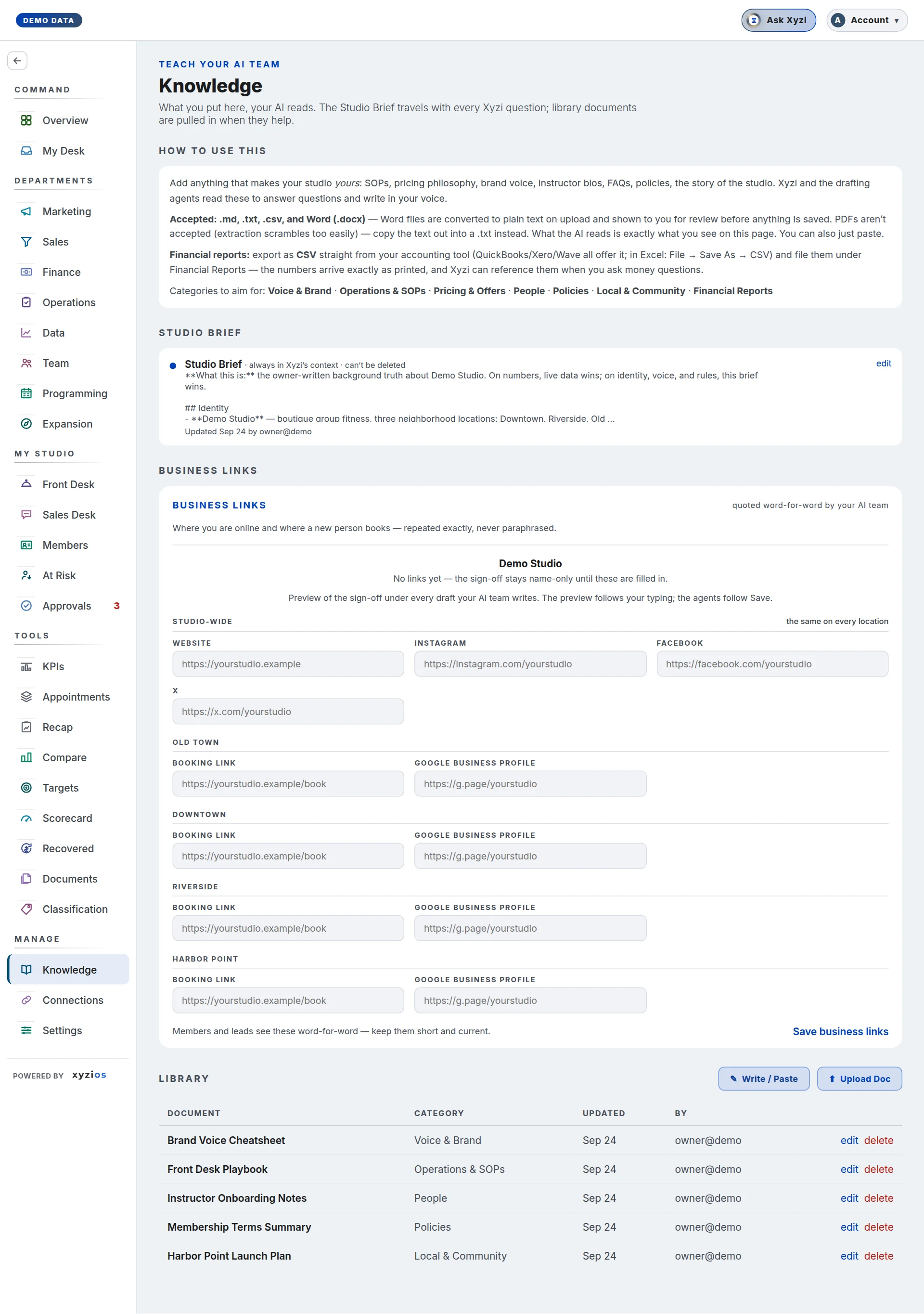
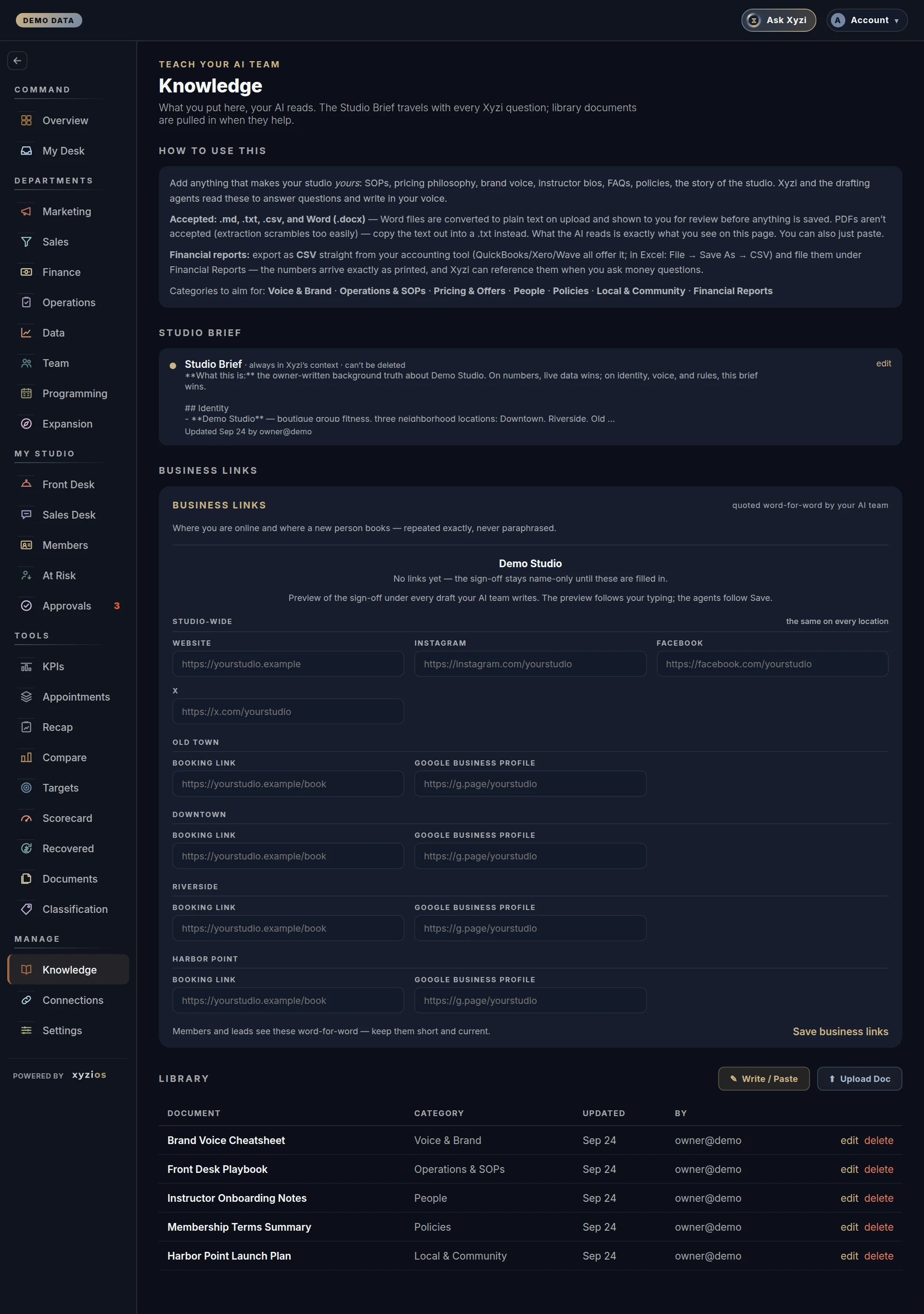
- 1Business links is the structured half: Website, Instagram, Facebook and X for the whole studio, then Booking link and Google Business profile per location. Above the fields is a preview of the sign-off that goes under every draft your AI team writes. The preview follows your typing; the agents follow Save.
- 2Who reads each category is the grid an owner or admin uses to decide who else reads what: one row per category and one column per role (Directors, Location managers, Front desk, Instructors, Bookkeepers). Owners and admins read everything. Until the grid is first saved, Directors are its only readers, apart from the two rows below.
- 3Studio Brief is the one document Xyzi reads on every question and every agent reads before every draft. On 4All documents it is one row above the documents: it says the Brief is always read, counts its characters against the 20,000 it can hold, and shows how many of its ten questions are answered as a bar. Open opens its own page. Your Brief is the Brief as its own sections, each a row with its first line, that opens in place (bullets and bold show as such); Read it all opens every one, and its head says how many sections, the characters and when it was updated and by whom. Beside it, Ten things Xyzi asks about lists the questions, each saying which section answers it: a section answers a question when it has the question’s name, or that name and more, as Hard rules (never break). Answer or Edit on a question opens the questions at that one. It can be edited, never deleted. Until one exists the box reads No Studio Brief yet.
- All documents, under What Xyzi can read, is the library as a table: each document’s title, its category, who reads it (for owners and admins) and the day it was last updated. A Promotions & Events document’s day turns amber 30 days after its last update. A category in the list shows only its documents, with a line saying what belongs there and who reads it, and Write or paste there starts one in that category. Search documents looks through titles and text. Xyzi pulls a library document in when the topic comes up, not on every question. Click one and it opens in a panel at the right, with Edit, Change category and Delete for those who can change it; ✕ closes it.
Two rows are not ticked. Finance is read by anyone with See financials, which bookkeepers have and Directors can be granted. Pay & HR is read by anyone with See pay. Both are set per person in Settings → Permissions → By person, the same permissions that show the Company P&L and pay on the Team board.
What you see depends on your role:
- Owners and admins see everything and change everything.
- Directors read every category ticked for them and the Studio Brief. A Director granted Manage the studio also adds, edits and deletes library documents and saves the business links; the Brief and who reads what stay with owners and admins.
- Everyone else (location managers, front desk, instructors and bookkeepers) sees a page called Shared with you. It lists only the documents in categories shared with their role, read-only, with no Studio Brief and no business links. Knowledge appears in their menu, under that name, once a category shared with their role holds a document.
What to do here
- Write the Brief first. Click Write it (or Open an existing Brief, then Edit), keep it short, factual and current, then Save Studio Brief. It reaches Xyzi on the very next question. The counter under the editor shows the 20,000-character cap.
- Give the Brief a Hard rules heading. Bullets under a heading that says rules, never or taboo become standing rules every drafting agent writes by.
- Open Business links (a folded row at the top of the page; Open unfolds it), fill it in and click Save business links. Use full addresses starting with https://. Members and leads see these word-for-word.
- Add library documents with Write or paste or Upload and pick a category. The line under the category says who will read the document. A Word file is converted to plain text and shown to you before anything is saved. For accounts, export CSV from your accounting tool and file it under Finance.
- Decide who reads what in Who reads each category, the folded row under Business links. Tick a role on a row and click Save, or click Use suggested, which saves a whole grid at once: the team-facing categories (Employee Policies, How-To Guides, Promotions & Events and Member Policies) for Directors, location managers, front desk and instructors; Pricing for Directors, location managers and front desk; Brand & Voice for Directors and location managers; Business Plans and Other for Directors. Either way, before anything opens you see a list of every document that would open and to whom.
- To remove a document click it, then Delete, and confirm. Xyzi and the agents stop reading it at once and it cannot be undone.
Common questions
I am a Director and there are no edit buttons.
By design, unless an owner grants you Manage the studio in Settings → Permissions → By person: then you maintain the library and the business links. The Studio Brief stays with owners and admins either way. It rides with every Xyzi answer and every member message, so an edit to it changes what the studio says to its members. Ask an owner or admin.
Why can’t I see Knowledge in my menu?
Nothing shared with your role holds a document yet, or Knowledge has been switched off for you in Settings → Permissions → By person. Ask an owner.
Can Xyzi answer questions about our policies?
Yes, from the documents you can read. On Xyzi help (front desk, instructors and bookkeepers) it answers from the documents shared with your role and quotes the one it used; it never sees the rest of Knowledge, and it still has no access to the studio’s numbers. @Xyzi in a Chat channel reads only the categories everyone in that channel can read.
Someone can read a document they should not.
Check its category. Move it to a category only the right people read, or untick that role on the category’s row.
A blog draft or reply ignored something in a document.
Agents read the categories that fit the job. The blog writer takes experience content from Brand & Voice only, and it never cites a statistic or an unannounced location even when a document does. Keep public-safe positioning under Brand & Voice and plans under Business Plans.
How do I move a document to another category?
Click it, then Change category, pick one and Save; or open it with Edit, pick the category and save. The category decides who reads it.
Does formatting show?
Where the page previews the Brief or a document, a line starting with # shows as a heading, - or * as a bullet, 1. as a numbered item, and two asterisks around words as bold. Anything else, HTML included, shows as the plain text it is, and a link shows its words without its address. The AI reads the text exactly as you wrote it.
Can I upload a PDF or an Excel file?
No. Copy a PDF’s text into a .txt file. For Excel, use File then Save As CSV and upload the .csv.
What does the AI actually read?
Exactly what you see here, nothing hidden: the Brief every time, a library document when the topic matches, business links quoted verbatim.
I pressed cancel and lost my edit.
The editor asks before discarding unsaved changes; once discarded they are gone. Save often, or draft long documents elsewhere and paste them in.